Quick start: from model to map with E. coli iJO1366
This tutorial walks through GEMs MAP from start to finish with a real genome-scale model. You will import E. coli iJO1366, simulate it with and without oxygen, compare the two solutions, and turn the comparison into an annotated pathway map. Each step tells you what to do, explains the idea behind it, and shows what you should see.
| Time | about 45 minutes |
| You need | GEMs MAP installed and running (Before you start, below) and an internet connection to download the model |
| Model | Escherichia coli str. K-12 substr. MG1655, iJO1366 (Orth et al., 2011): 2,583 reactions, 1,805 metabolites, 1,367 genes |
| You will learn | COBRAGUI: import, explore, medium, pFBA, results, comparison, subsystem figures · Map Builder: datasets, templates, mappings, plots, collapsing, connected reactions, routes |
Your numbers may differ slightly
The growth rates in this tutorial are reproducible. Individual fluxes and the counts derived from them can change a little between runs, because a model usually has many equally optimal flux distributions and pFBA returns one of them (see Constraint-based analysis). If you see, for example, 26 instead of 30 reactions activated from zero, nothing is wrong.
Before you start: install GEMs MAP
GEMs MAP is installed with pip in a Python environment of its own: a folder with its own copy of Python and its own libraries, so GEMs MAP cannot interfere with your other projects, and deleting the folder removes it. You need Python 3.10 or newer. The whole sequence is: open a terminal, make a folder, create the environment in it, activate it, update pip, install GEMs MAP and start it.
In PowerShell (press the Win key, type PowerShell, press Enter), one line at a time:
In Terminal, one line at a time:
After the activation, the line where you type starts with (.venv). The installation downloads a few hundred MB and can take several minutes. The last command opens GEMs MAP in your browser; keep the terminal open while you work through the tutorial.
If a command fails, or you want to know what each one does and what you should see, follow Step by step: install with pip. It also covers the most common surprises: py instead of python on Windows, PowerShell refusing to run the activation script, and the missing venv module on Ubuntu. If you prefer not to install Python, the Installation page has two other ways (uv and a double-click zip).
Already installed?
Open a terminal, go to the folder, activate the environment and start: cd $HOME\gemsmap, .\.venv\Scripts\Activate.ps1, gemsmap on Windows; cd ~/gemsmap, source .venv/bin/activate, gemsmap on macOS and Linux.
Part 1 · COBRAGUI
Step 1 — Import the model
- Download iJO1366 from BiGG Models: open bigg.bio/models/iJO1366 and download the JSON file, or download it directly from
http://bigg.ucsd.edu/static/models/iJO1366.json(2.8 MB). - Open GEMs MAP. It starts in COBRAGUI.
- Drag
iJO1366.jsononto the window, or click Import model and choose the file. - Wait a few seconds while COBRApy reads the model. The Overview opens.
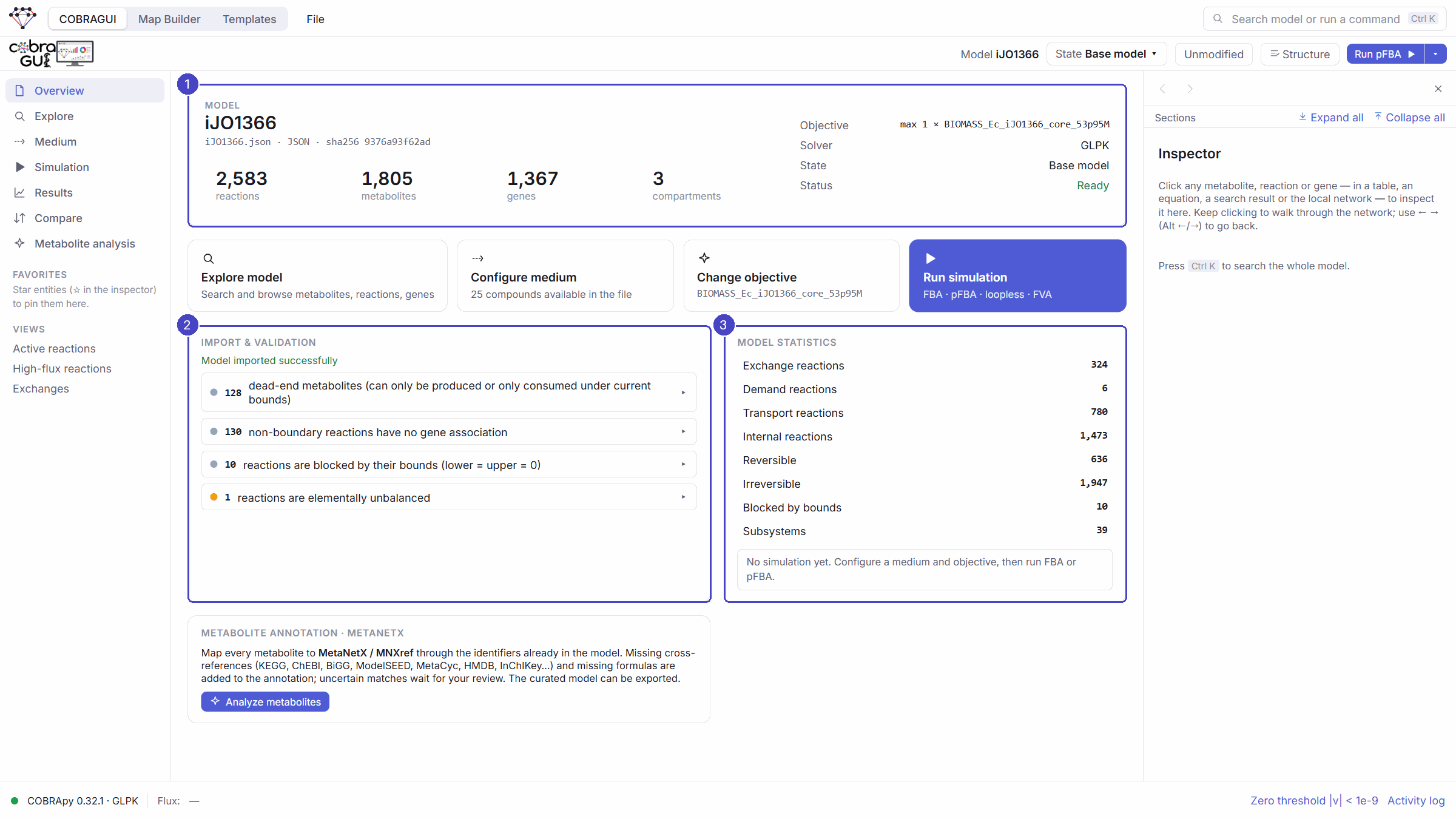
The idea behind it
COBRApy reads and validates the file in the local backend; your browser never computes fluxes. GEMs MAP keeps a copy of the file and identifies it by its checksum, so every result you compute later records exactly which model produced it. The original file is never modified.
The start screen also offers E. coli iJO1366 as an example bundled with COBRApy. It is the same reconstruction, but downloading the BiGG file makes your work reproducible with a file you can cite and share.
Step 2 — Get to know the model
- On the Overview, read Model statistics: 324 exchange, 6 demand, 780 transport and 1,473 internal reactions; 636 reversible and 1,947 irreversible; 39 subsystems. Click any line, for example Exchange reactions, to open those reactions in the Explorer.
- Read Import & validation: each note (dead-end metabolites, reactions without genes…) expands to the IDs involved.
- Click Explore in the left sidebar, then the Reactions tab.
- Look at the subsystem browser on the left of the table: every subsystem with its number of reactions. Click Glycolysis/Gluconeogenesis to filter the table; click it again to clear the filter.
- Type
pyruvatein the search box: it searches IDs, names, equations, genes, subsystems and EC numbers at once.
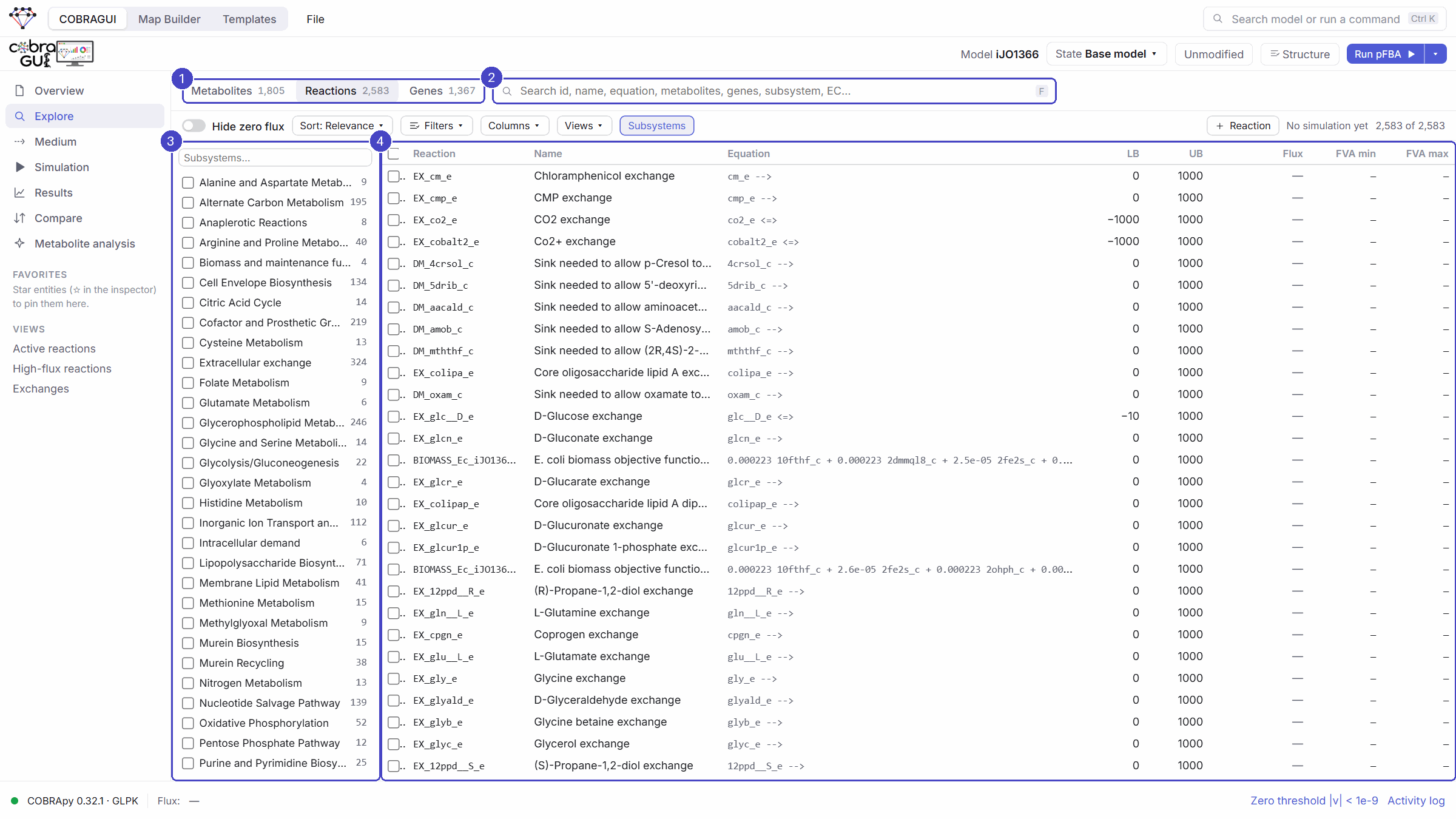
The idea behind it
A genome-scale model is too large to read as a list. Subsystems are the pathway labels its authors attached to reactions; they are the quickest way into a part of metabolism. Exchange reactions connect the model to its environment (the medium), transport reactions move metabolites between compartments, and internal reactions are the metabolism itself.
Step 3 — Inspect a metabolite in the side panel
- Click the Metabolites tab and search
pyr_c. - Click the row pyr_c — Pyruvate. The inspector on the right shows it.
- Look at the tools at the top of the inspector: Add to map, Connected reactions, Copy, Edit, Boundary (create an exchange, sink or demand), New reaction with it, and the ☆ to add it to Favorites.
- Scroll down: formula, charge, compartment, the reactions that produce and consume pyruvate, and a small local network.
- Click any reaction in the list, then a metabolite in its equation: you are walking through the network. Use the ← → arrows at the top of the inspector (or Alt+Left / Alt+Right) to go back and forward.

The idea behind it
Before a simulation, GEMs MAP can only say which reactions could produce or consume pyruvate, according to the side of the equation (Produced by (as written)). That is connectivity, not flux. After the simulation in the next step, the same lists split by the direction in which each reaction actually runs. More in Metabolite analysis.
Step 4 — Simulate with pFBA and name the result run_o2
- Click Simulation in the sidebar.
- Choose the pFBA card. The objective is the model's biomass reaction (
BIOMASS_Ec_iJO1366_core_53p95M) and the medium is the one stored in the file (glucose, aerobic). - Click Run pFBA. After a few seconds the result card shows Optimal and an objective of about 0.982 h⁻¹.
- Click Results in the sidebar. Click Rename (or double-click the title), type
run_o2and press Enter. - Browse the tabs: Reactions (flux of each reaction), Metabolites (turnover), Exchanges (what the cell takes up and secretes), Subsystems, Genes, and How was this generated? (the full provenance).

The idea behind it
FBA finds a flux distribution that maximises growth subject to mass balance and the reaction bounds. Many distributions usually reach the same maximum. pFBA picks, among them, one that needs the least total flux, which is a more reproducible and enzyme-economical choice. The objective value is the growth rate (h⁻¹); fluxes are in mmol gDW⁻¹ h⁻¹. Every result stores its model, state, medium, objective, solver and time, so naming it is all you need to find it again.
Step 5 — Remove oxygen and simulate again: run_wo2
- Click Medium in the sidebar. The table lists the compounds the cell may take up, with their maximum uptake.
- Type
EX_o2_ein the search box (typingo2also finds CO₂, Co²⁺ and others). The row is O2 — EX_o2_e, with a maximum uptake of 1000. - Click the Max uptake cell, type
0and press Enter. The row leaves the Available only list, because oxygen is no longer available; switch to All exchanges to see it with Model file 1000 → 0. The top bar now says Modified · 1. - Go to Simulation and click Run pFBA again. The growth rate drops to about 0.242 h⁻¹.
- In Results, rename this result
run_wo2.
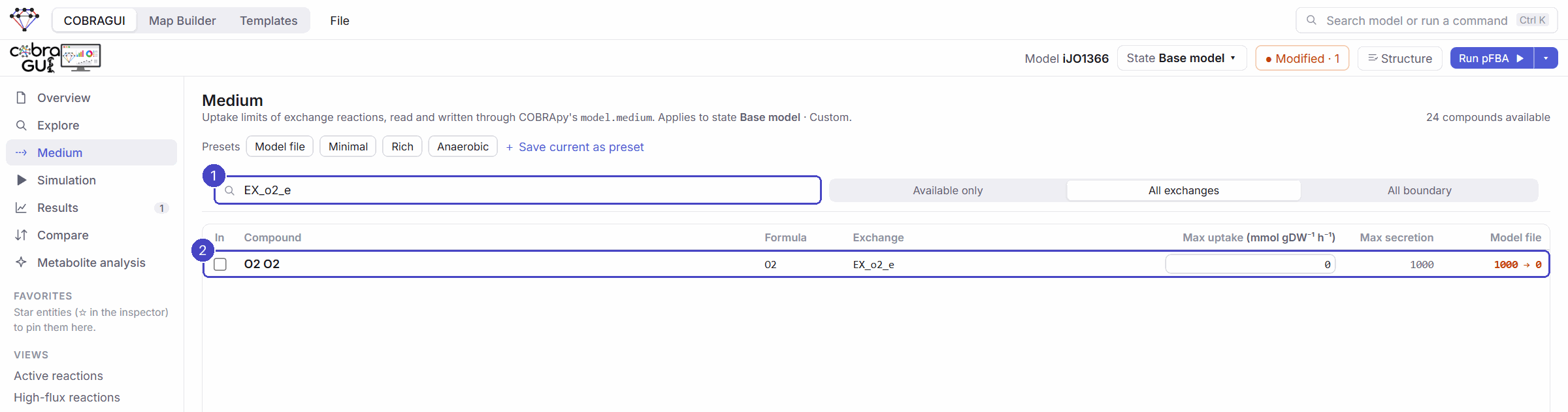
The idea behind it
The medium is the set of uptake limits of the exchange reactions. Setting the oxygen uptake to zero asks the model how E. coli grows anaerobically on glucose. The change is recorded in the active model state, not in the file, and the result run_o2 keeps the configuration it was computed with. Tip: for longer studies, use State → Duplicate to keep each condition as its own named state (see Medium, bounds and objective).
Step 6 — Compare run_o2 and run_wo2
- Click Compare in the sidebar (or Compare with… on a result).
- Choose A =
run_o2(the reference) and B =run_wo2. - Open Metric and look at the four options: Δ = B − A, |Δ|, log₂ fold change |B|/|A| and fold change |B|/|A|. Choose log₂ fold change.
- Click Compare.
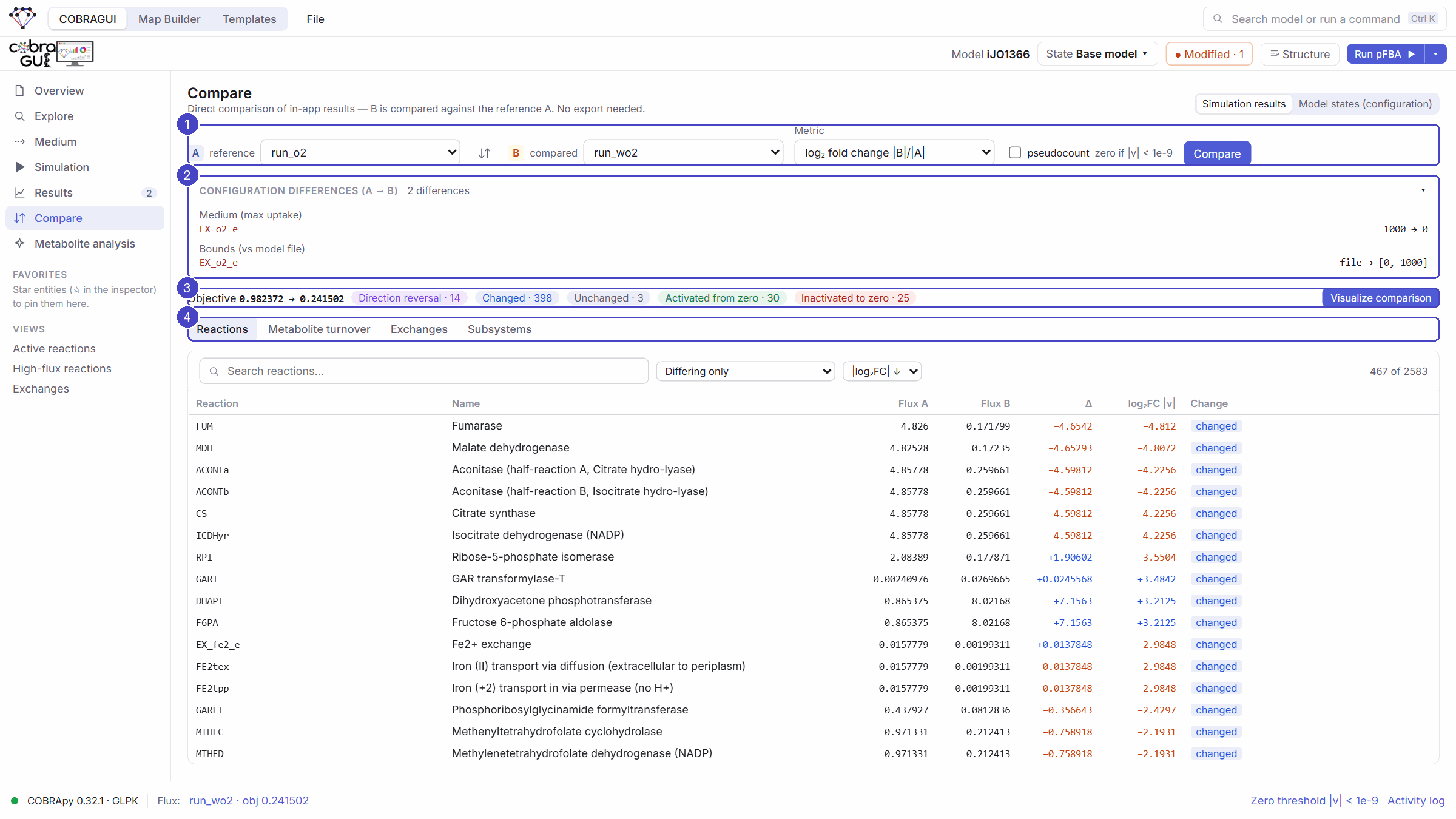
The idea behind it
GEMs MAP first lists what differs between the two runs (here only EX_o2_e), so you know what you are comparing. Then it classifies every reaction before computing any ratio: changed, unchanged, activated from zero, inactivated to zero, direction reversal. A fold change is not defined for a reaction that starts or stops, or that runs the other way, so those are counted separately instead of being hidden in a number. log₂FC compares magnitudes: +1 means twice the flux, −1 half.
Now use the comparison to answer some questions. The filter menu above the table (Differing only) selects the categories.
Which reactions were switched on without oxygen? Choose Activated from zero.
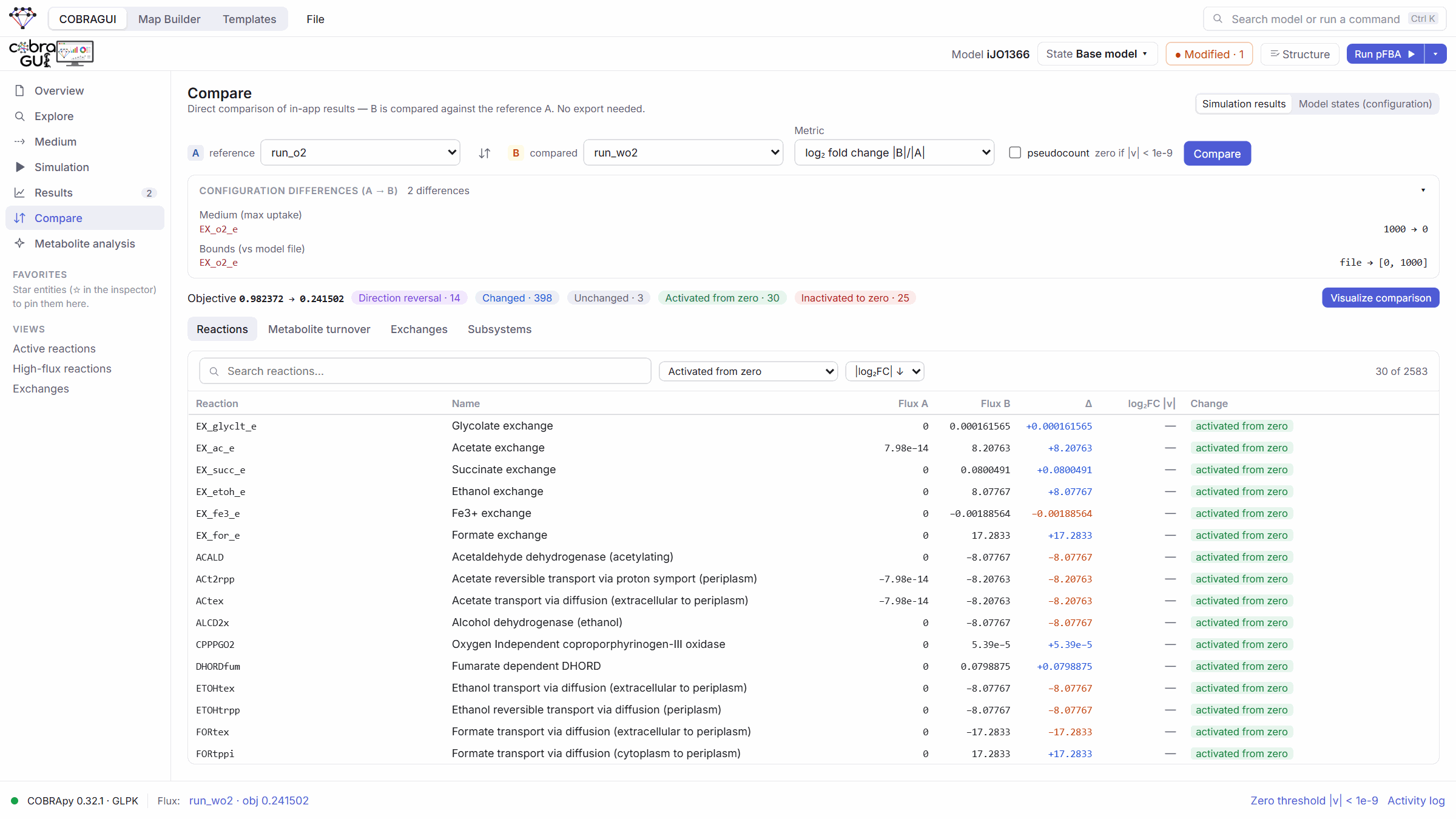
You should find the secretion of fermentation products (EX_ac_e acetate, EX_etoh_e ethanol, EX_for_e formate, EX_succ_e succinate), the ethanol pathway (ACALD, ALCD2x), and oxygen-independent versions of enzymes that normally use O₂: CPPPGO2 (coproporphyrinogen oxidase) and DHORDfum (dihydroorotate dehydrogenase with fumarate).
Which reactions were switched off? Choose Inactivated to zero. You should find oxygen uptake (EX_o2_e), the cytochrome oxidase (CYTBO3_4pp), 2-oxoglutarate dehydrogenase (AKGDH), the oxidative pentose phosphate pathway (G6PDH2r, GND) and the O₂-dependent enzymes replaced above (CPPPGO, DHORD2).
Which metabolites were affected? Open the Metabolite turnover tab: O₂ turnover collapses, formate rises strongly, CO₂ falls, and TCA intermediates such as succinyl-CoA and malate fall. Click a metabolite to see which reactions explain its change.
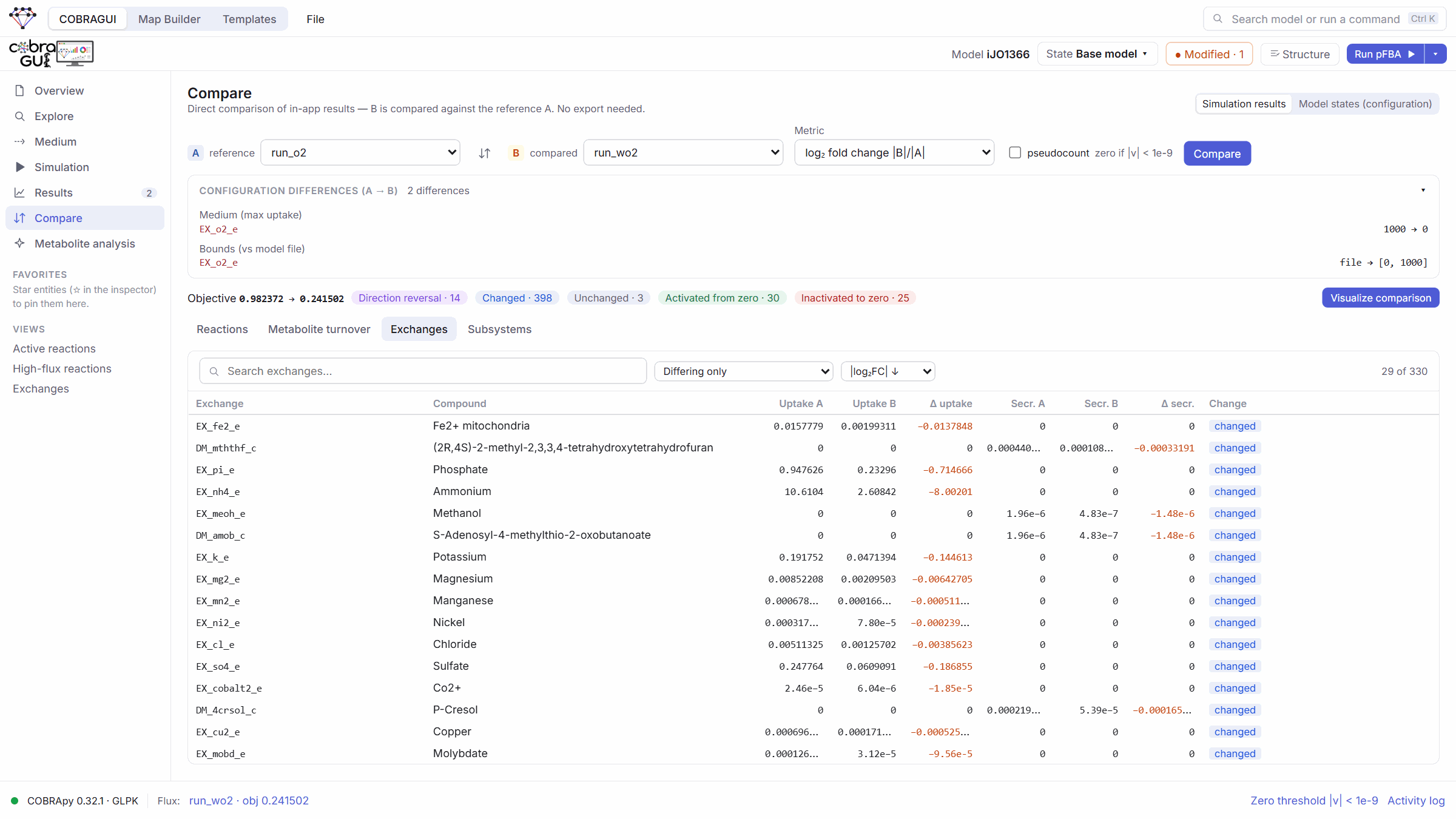
What does the cell exchange with the medium? Open the Exchanges tab: uptake and secretion per compound in A and B. Nutrients such as ammonium and phosphate are taken up less, because the cell grows about four times more slowly.
Descriptive, not causal
These are differences between two optimal solutions of a model. They show how the model can adapt, not a measurement, and another optimal solution may route some fluxes differently.
Step 7 — Compare by subsystem and make a figure
- Still in Compare, open the Subsystems tab. The list on the left ranks subsystems by how much their total flux changed; the dumbbell shows A (light) and B (dark).
- Click Glycolysis/Gluconeogenesis. The List view shows each reaction's flux in A and B.
- Switch the view to Bars, Heatmap and Donut. These are publication figures, sized for a journal column.


- Go back to Bars and also tick Citric Acid Cycle in the list.
- Choose Together (one chart, one scale) or Separate (one panel per subsystem; then Shared scale or Own scale).
- In the figure options choose IDs or Names for the reactions, and optionally Values, the width (single, 1.5 or double column), the font size and a title.
- Save the figure as SVG, PDF or PNG (300 or 600 dpi).

The idea behind it
Subsystem totals (Σ|flux|) give the global picture; opening a subsystem shows which of its reactions moved. Bars and heatmaps compare values; the donut only shows how Σ|flux| is shared within the selected subsystems, because Σ|flux| values are not parts of a natural whole. The figures are vector graphics sized in millimetres, ready for a paper.
Part 2 · The Map Builder
Step 8 — Send the comparison to the Map Builder
- Click Map Builder in the workspace switcher (top left). If a figure is already open, for example the built-in example, choose File → New project to start from an empty canvas.
- Go back to the COBRAGUI → Compare and click Visualize comparison.
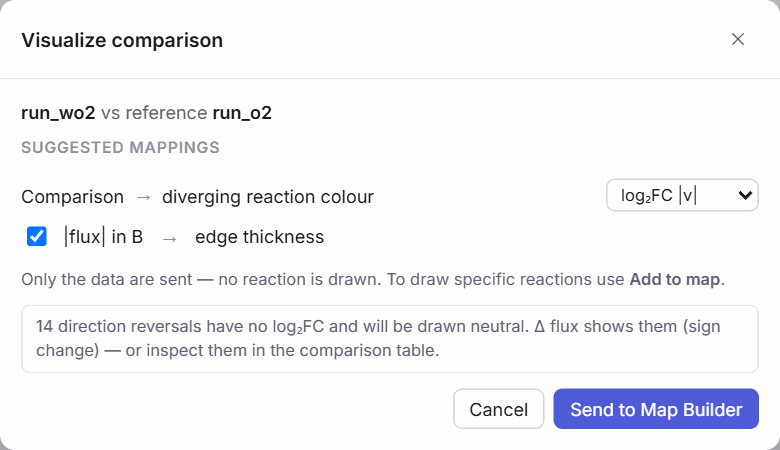
- In the dialog keep log₂FC of |flux| → edge colour and width = |flux| in B, then click Send to Map Builder. (If the Map Builder holds another model, GEMs MAP asks before replacing it: confirm.)
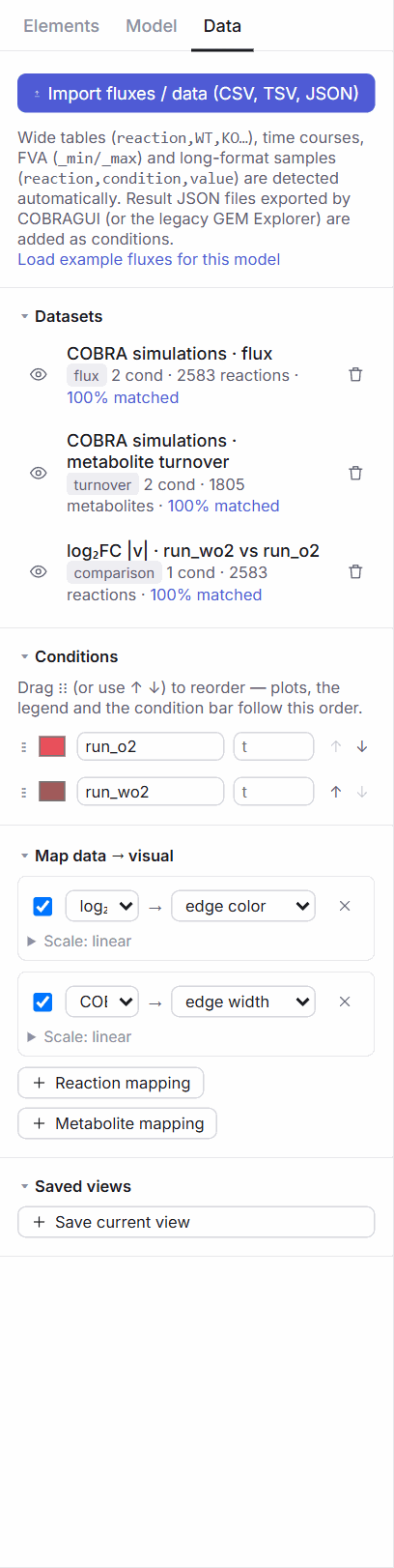
- In the Map Builder, open the Data tab of the left panel: the data are already there.
The idea behind it
The Map Builder receives data, not a drawing: three datasets (fluxes, metabolite turnover and the log₂FC comparison), one condition per result, and suggested mappings from data to colour and width. Because the map uses the same model IDs as COBRApy, any arrow bound to a reaction picks up its value automatically. Next you draw the pathway.
Step 9 — Insert the global central carbon metabolism template
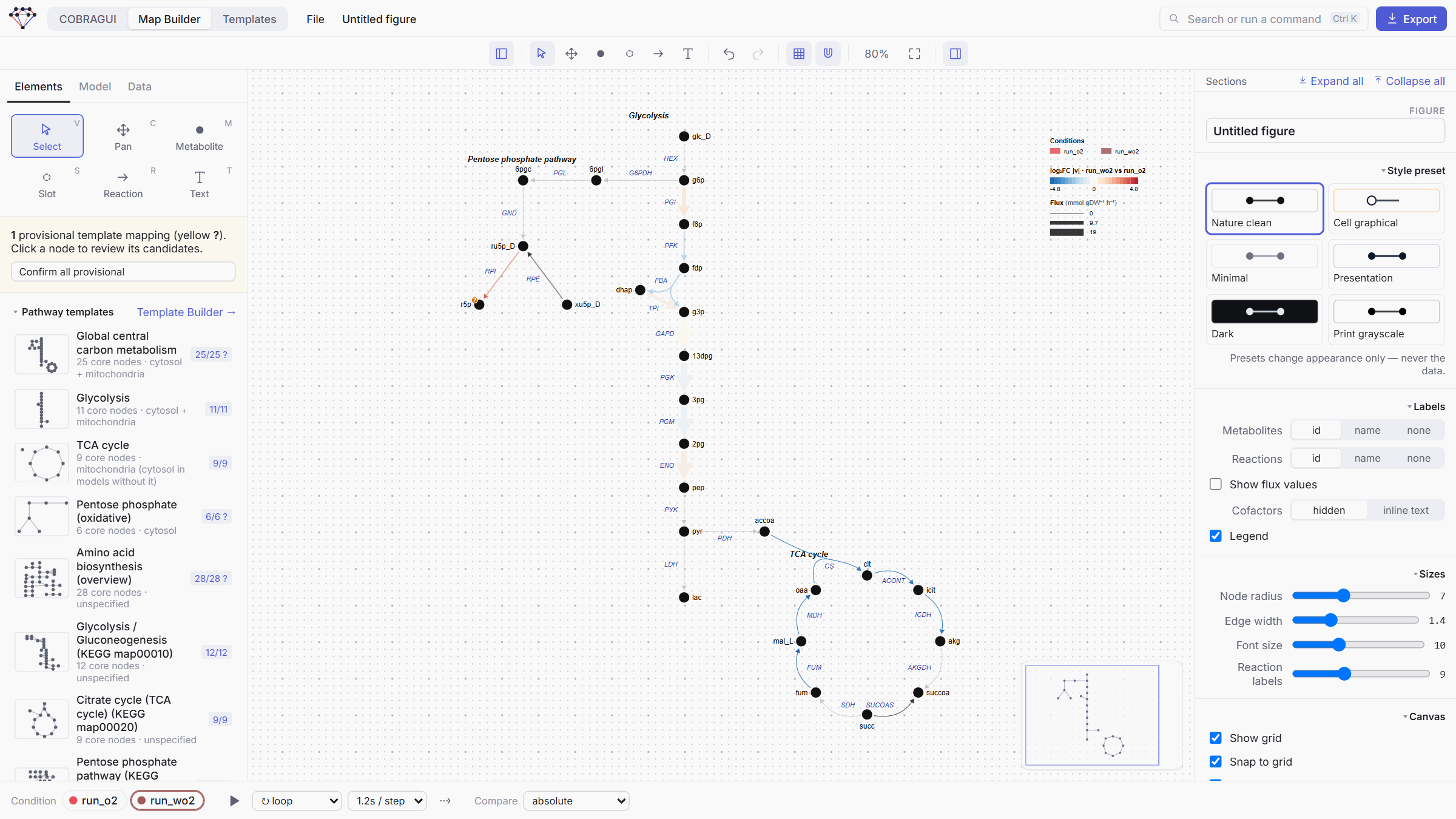
- Open the Elements tab and click Global central carbon metabolism under Pathway templates.
- The mapping review opens: GEMs MAP has searched iJO1366 for every metabolite of the template. On a fresh installation you should see 25 mapped, 1 to review: D-Ribose 5-phosphate →
r5p_c, provisionally, with medium confidence. Click it and why? to see the evidence, and keepr5p_c; it is the right metabolite. (If you ran the metabolite analysis on this model before, all 26 may be mapped automatically.) - Note the message about the TCA cycle: it is mitochondrial in eukaryotes, and since E. coli has no mitochondria, it was searched in the cytosol.
- Click Create pathway. A preview follows your mouse: click where it should go. Then press F to fit the view.

The idea behind it
A template stores what each molecule is (names, formula, database identifiers) and the layout, never model IDs. The matcher finds the model's names for each molecule and leaves uncertain cases to you, because an open slot is better than a wrong one. Your decisions are remembered for this model. See Identity and matching.
Step 10 — Change how the data are drawn
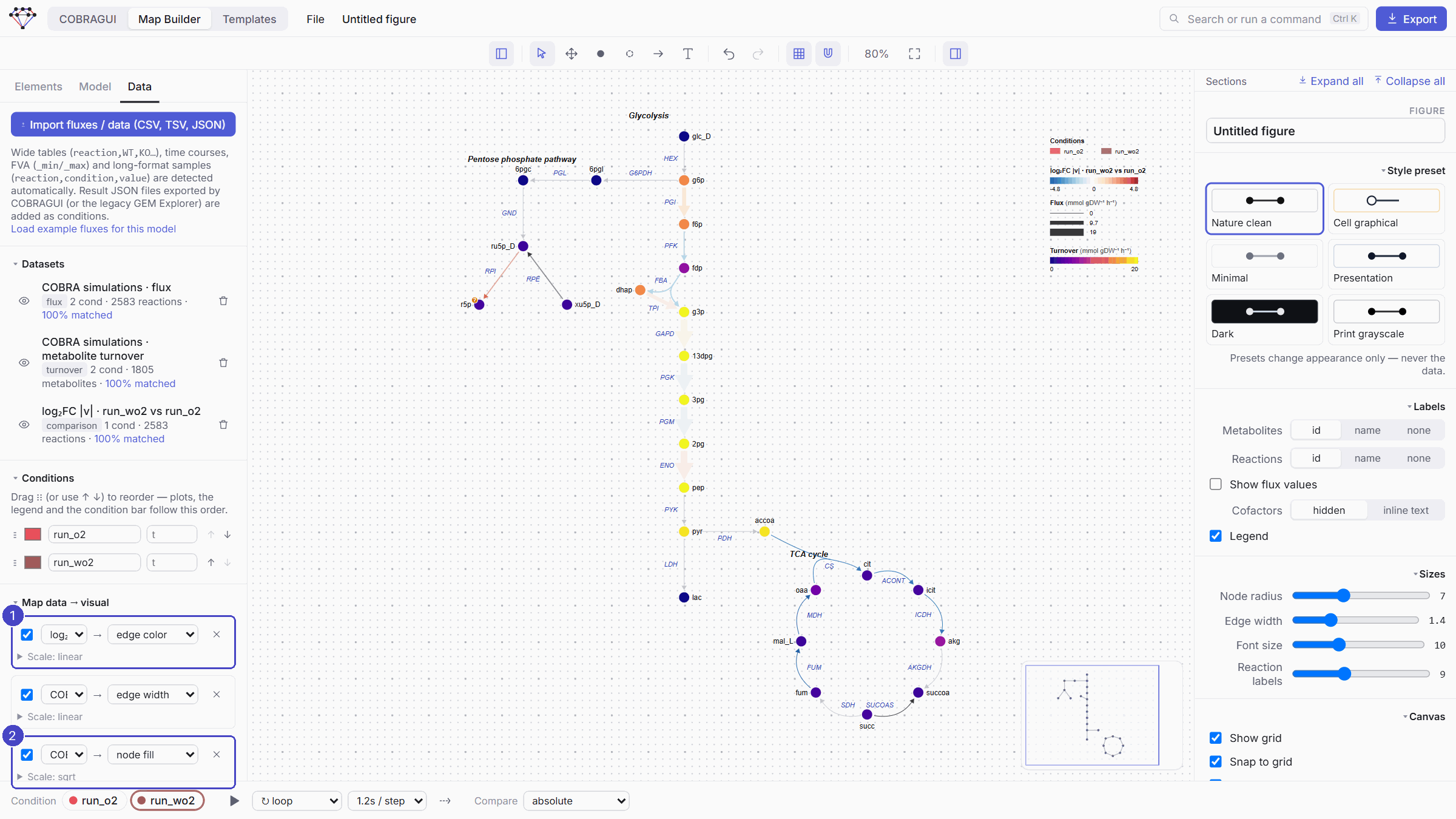
- Open the Data tab. Under Map data → visual, each row is a mapping: dataset → property.
- Change a property in the second menu: for reactions edge width, edge color, opacity or label. Click Scale to choose linear, square-root, log or percentile, the palette and the min/max.
- Click + Metabolite mapping: it uses the metabolite turnover dataset. Change its property to node fill: nodes are now coloured by turnover. Node radius and opacity are the other options.
The idea behind it
Data and drawing are separate: the same map can show fluxes as width and a comparison as colour, and switching a mapping never changes the data. The arrowhead always follows the sign of the flux, zero flux is drawn thin and grey, and colour scales are computed over all conditions, so switching condition never silently rescales the map.
Step 11 — Move around the map
- Press C (the hand tool) and drag to pan; press V to go back to selecting. You can also hold Space and drag, or drag with the right mouse button.
- Scroll the mouse wheel to zoom; F fits everything; the minimap in the corner shows where you are.
Make C and V a habit
Switching between C (move) and V (select), with the mouse wheel for zoom, is the recommended way to work in the Map Builder for the rest of this tutorial and in your own projects. With the hand, a drag never moves or selects anything by accident.
Step 12 — Look at PGK and plot it
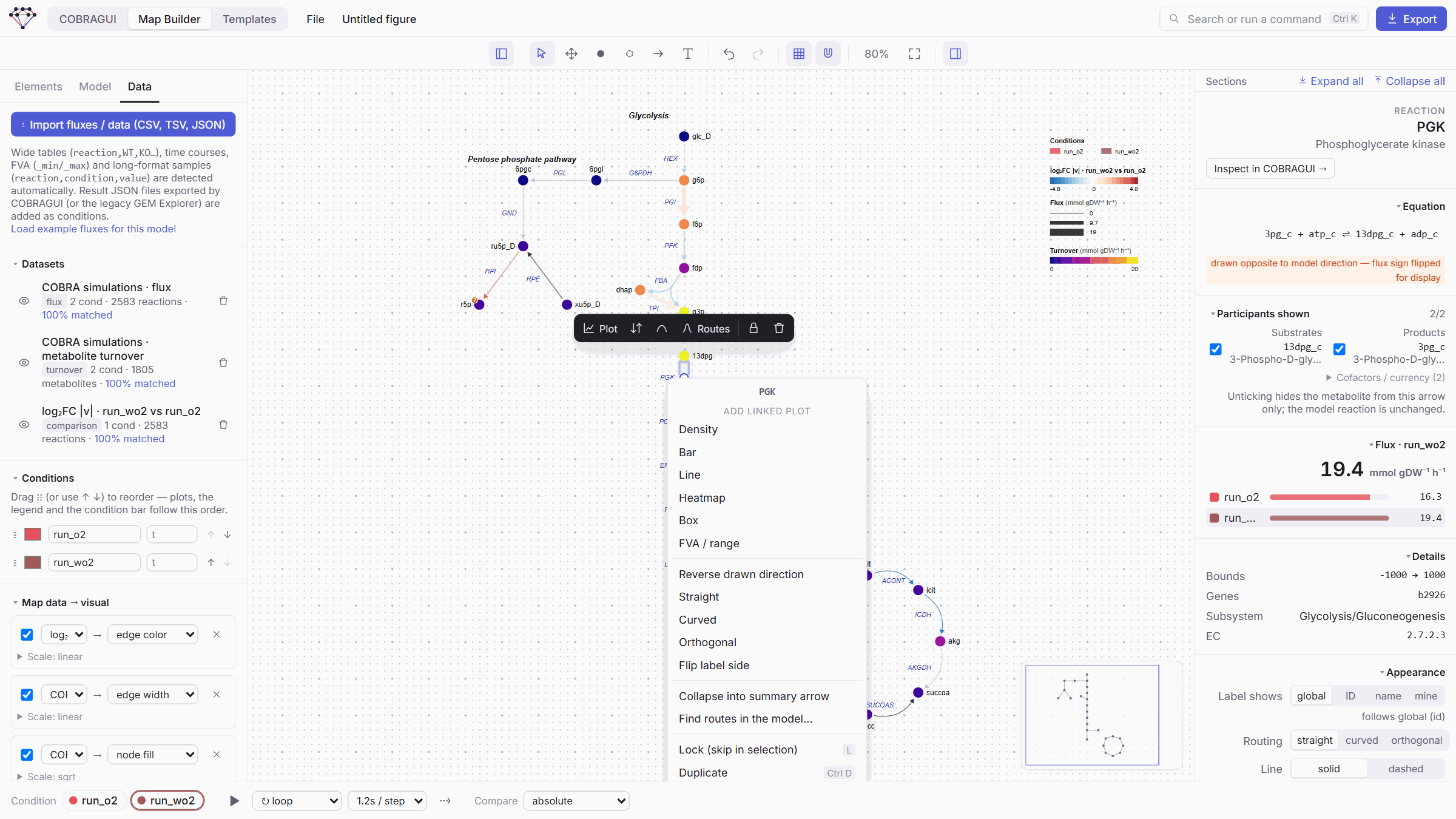
- Right-click the PGK arrow (or its label). A menu opens with the actions for this reaction: Add linked plot (density, bar, line, heatmap, box, FVA range), Reverse drawn direction, straight / curved / orthogonal routing, Flip label side, Collapse into summary arrow, Find routes in the model…, Lock, Duplicate… At the same time the inspector on the right shows the reaction.
- Press Esc to close the menu and click PGK to select it again.
- Explore the inspector: the equation, the participants shown on this arrow, the flux in each condition (about 16 in
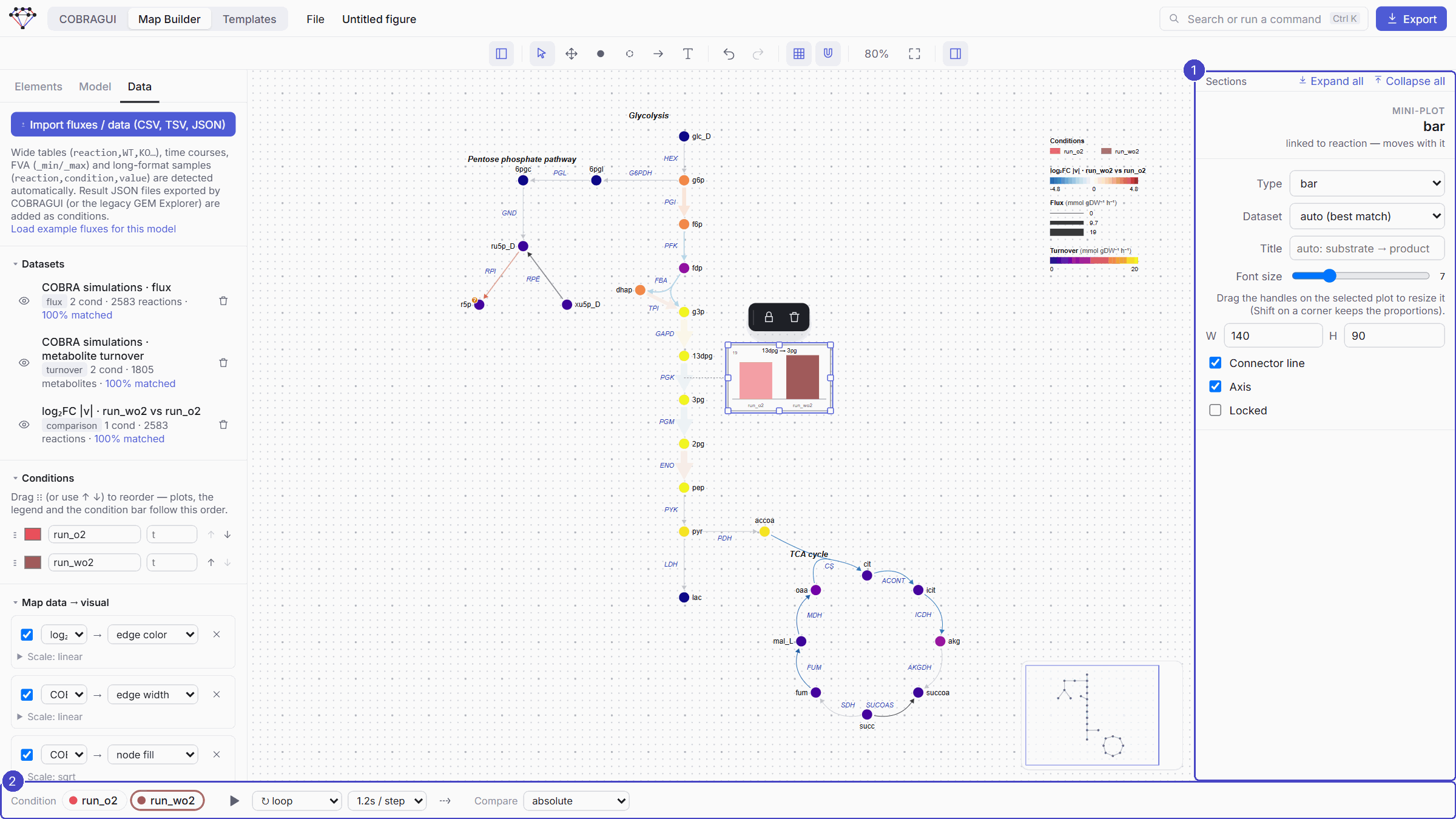
run_o2and 19 inrun_wo2mmol gDW⁻¹ h⁻¹), bounds, genes, EC number, and Appearance: label (global, ID, name or your own text), routing, solid or dashed line, Reverse, Flip label. Fold or unfold sections by clicking their titles (Expand all / Collapse all); drag the left edge of the panel to make it wider. - Under Linked plots, click + bar (or use Add linked plot → Bar in the right-click menu). A small bar chart of PGK in both conditions appears next to the arrow and moves with it.
Drawn opposite to the model
The inspector of PGK says drawn opposite to model direction — flux sign flipped for display. iJO1366 writes the reaction as 3pg_c + atp_c ⇌ 13dpg_c + adp_c, while glycolysis is drawn from 1,3-bisphosphoglycerate to 3-phosphoglycerate. GEMs MAP keeps the drawing readable and flips the sign of the flux for display, so the arrowhead still points the way the reaction runs.
Step 13 — Switch, compare and animate conditions
At the bottom of the window, the condition bar controls the whole map:
- click run_o2 or run_wo2 (or press [ / ]) to show one condition;
- Compare sets a comparison mode against a reference condition: difference (Δ), fold change or log₂ fold change;
- ▶ plays through the conditions, in a loop, back and forth or once, at the chosen speed. With more than two conditions that have a time (Data → Conditions, field t), a timeline slider appears for time courses;
- Export → GIF turns the same animation into a file.
Step 14 — Collapse PGM, ENO and PYK into one arrow
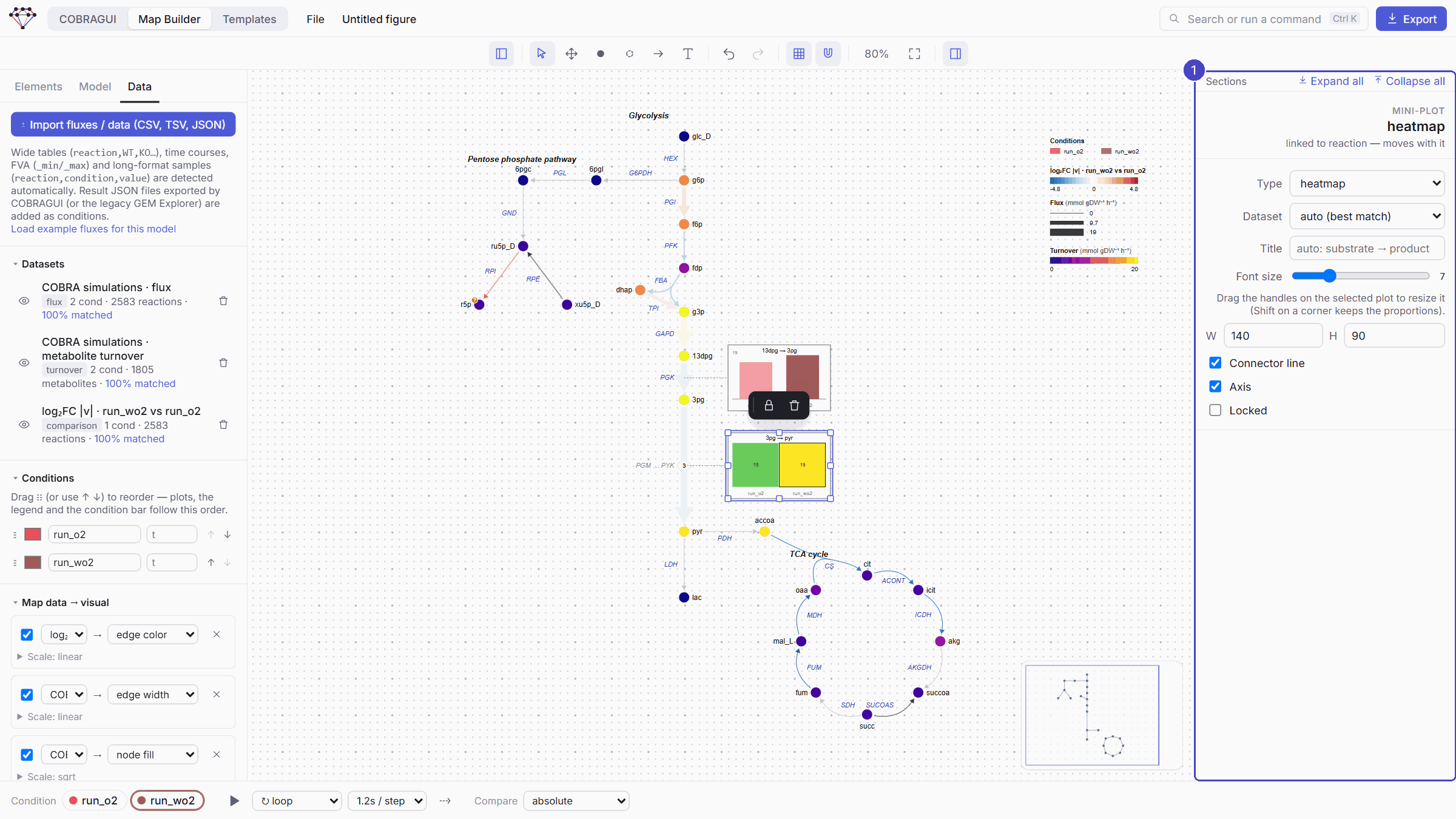
- Click the PGM arrow, then hold Shift and click ENO and PYK.
- In the inspector, click Collapse into one arrow. The three reactions become one summary arrow from 3-phosphoglycerate to pyruvate.
- With the summary arrow selected, click + heatmap: a heatmap of the arrow's flux in each condition appears next to it.
The idea behind it
Collapsing simplifies a figure without losing information: the hidden reactions are stored inside the summary arrow, and Expand back restores them. The summary arrow's flux is the net flux entering the segment (about 14.6 in run_o2 and 19 in run_wo2 here); its inspector lists the hidden reactions with their own fluxes. In this solution PYK carries no flux in run_wo2; the next step shows which reactions make pyruvate instead. You can also choose sum, mean, minimum or maximum.
Step 15 — Explore pyruvate and add ACLS
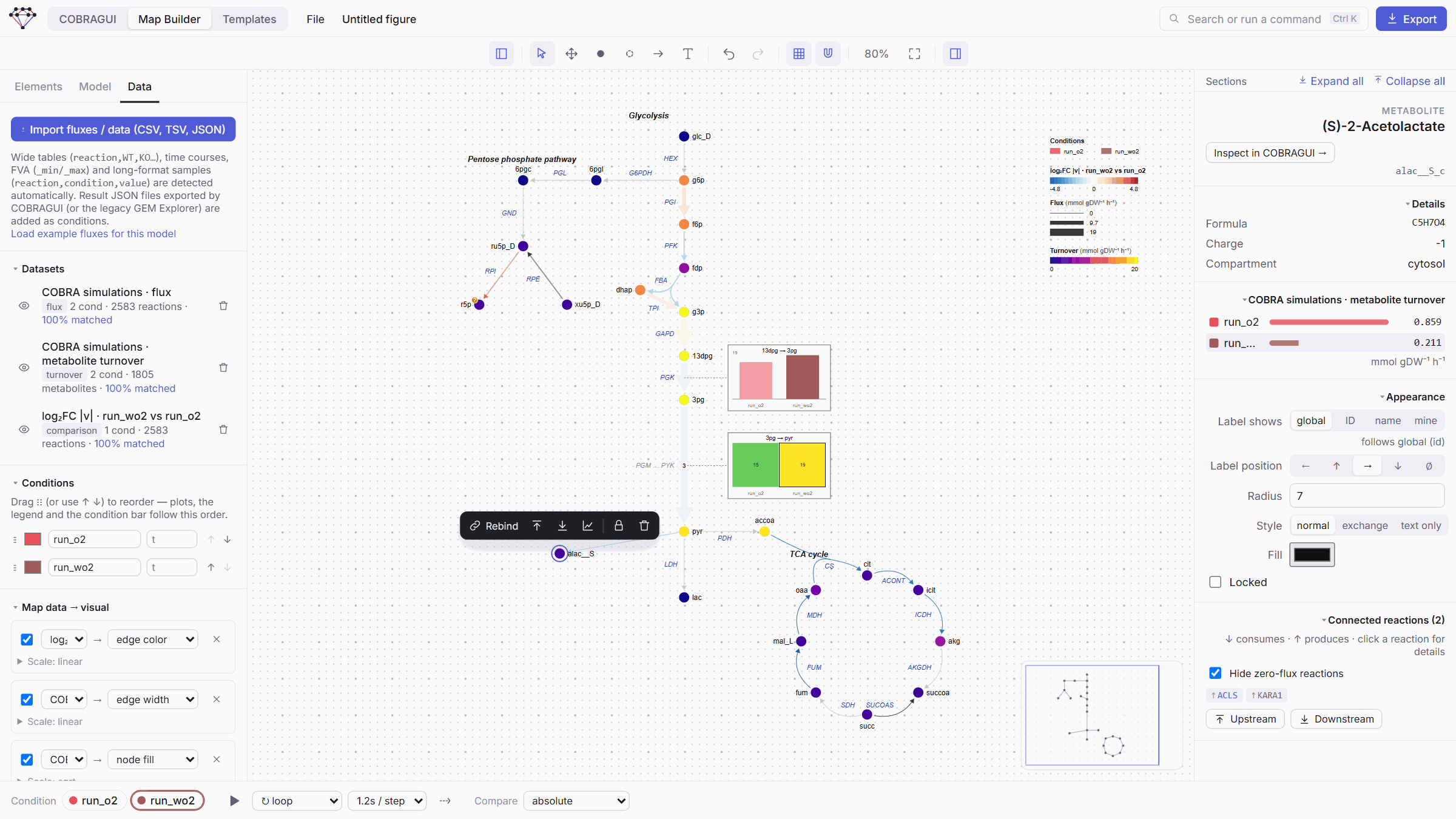
- Click the pyr node (pyruvate). The inspector shows its template mapping (
pyr_c, matched automatically;pyr_eandpyr_pare other compartments with low scores), its formula, its turnover in each condition, and its appearance (label, label position, radius, style, fill). - Under Connected reactions, tick Hide zero-flux reactions: of the 62 reactions of pyruvate in iJO1366, only those with flux in at least one condition remain. ↑ produces, ↓ consumes.
- Click a reaction chip to see what it is: name, equation, subsystem, genes and bounds.
- Click ACLS (acetolactate synthase, the first step towards valine, leucine and isoleucine) and Add to the map.
- ACLS appears attached to pyruvate, with a new node for its product, which may land on top of something else. Drag the new node to a free spot.


The idea behind it
Growing a map from the model keeps the drawing focused on what the data say matters: hiding zero-flux reactions leaves only the active neighbourhood. An added reaction brings its own copies of its other metabolites rather than connecting to nodes elsewhere. To join a copy with an existing node of the same metabolite, drag it onto that node and release when the green ring appears.
Step 16 — Draw your own, or bring reactions from COBRAGUI
Draw freely. Press M and click the canvas to add a metabolite (choose it from the model), or S for an empty slot that you bind to a metabolite later. To draw a reaction, drag from the outer ring of one node to another; drop on empty canvas to create the next node of a chain. Arrows between two bound metabolites are bound to the model reaction that links them.
Or start from COBRAGUI:
- Switch to COBRAGUI and click Explore.
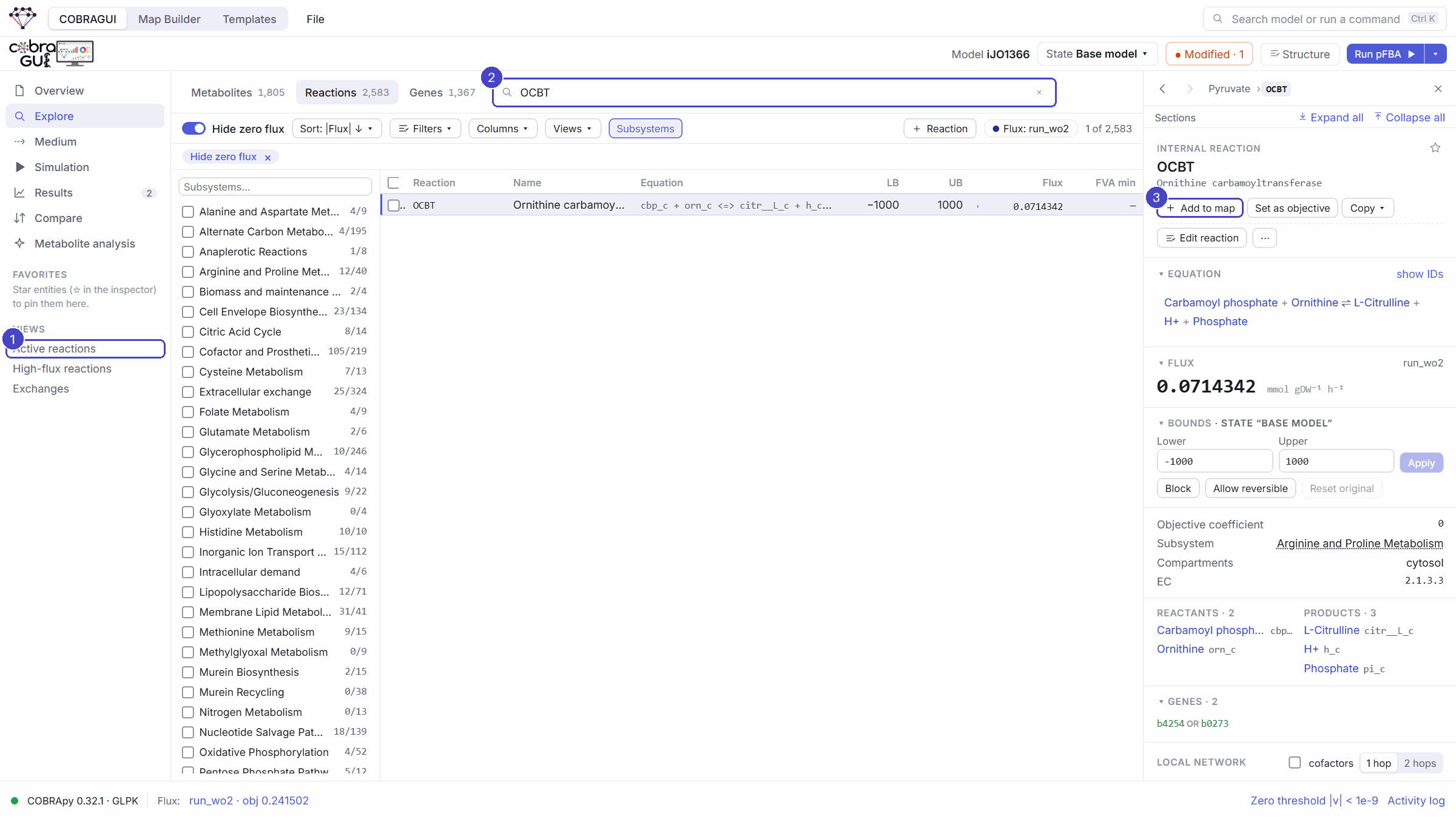
- In the left sidebar, under Views, click Active reactions (only reactions with flux, sorted by |flux|).
- Search
OCBT(ornithine carbamoyltransferase, in arginine biosynthesis) and click it. - In the inspector, click + Add to map. GEMs MAP switches to the Map Builder with OCBT as a light preview that follows the mouse: click an empty area to place it (Esc cancels), then press F. Its metabolites are new copies; drag one onto another node of the same metabolite to merge them.
Step 17 — Add the amino acid biosynthesis template
Templates are pathway maps that know the identity of each molecule. The matcher proposes where each one is in your model, and a person reviews the result.
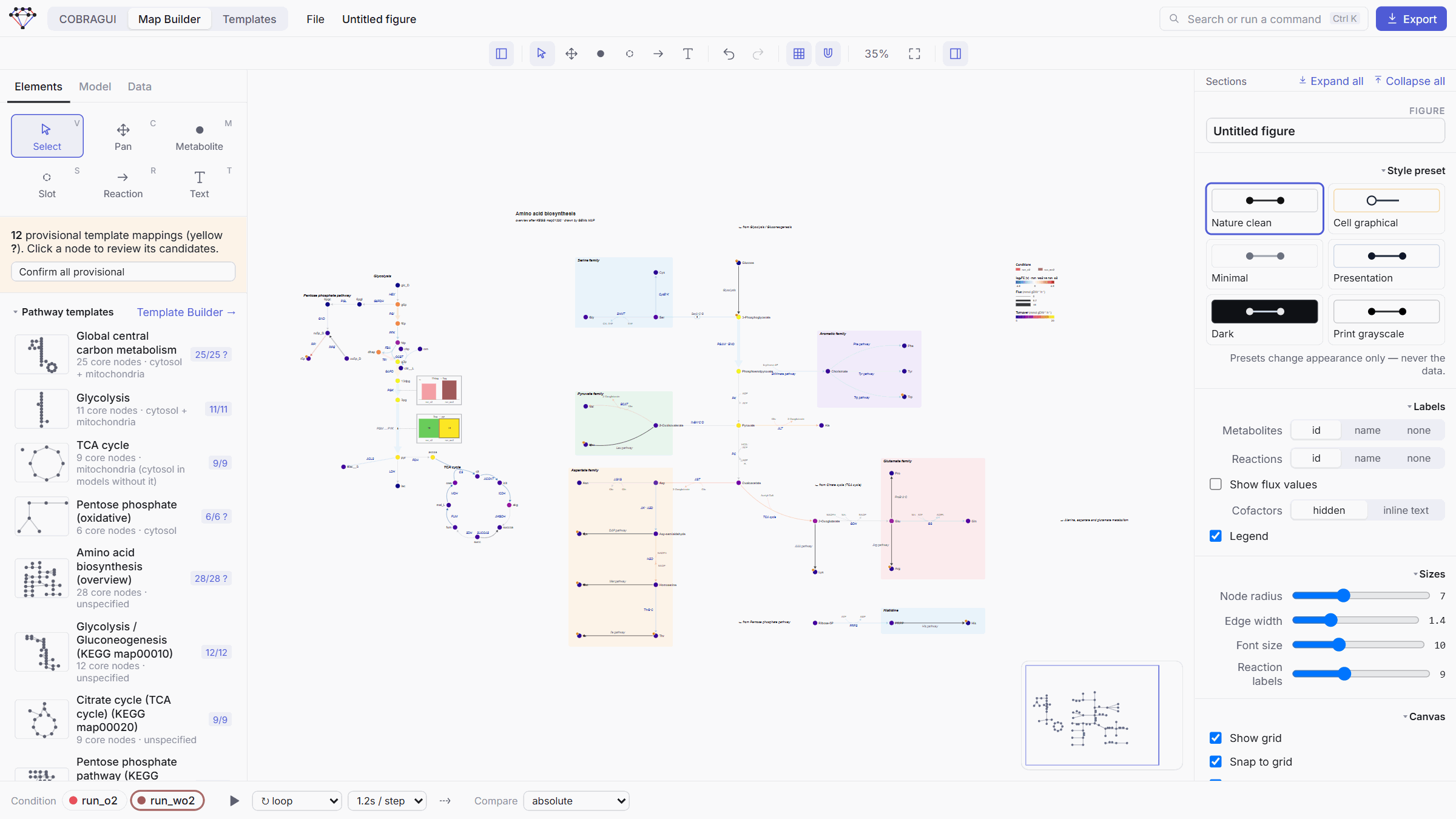
- In the Map Builder, Elements → Amino acid biosynthesis (overview).
- The review reports 22 mapped and 10 to review: glucose, 3-phosphoglycerate, tryptophan, leucine, lysine, threonine, methionine, isoleucine, arginine and histidine are proposed with medium confidence. Click each one to check its candidates and evidence; you could choose another candidate or Mark absent if the model did not contain it. Here all ten proposals are the right cytosolic metabolites (
glc__D_c,3pg_c,trp__L_c…). - Click Create pathway and click an empty area to place it. Everything inserted stays selected, so you can drag it as one piece (or move it with Shift + arrow keys). Press F.


The idea behind it
The ? marks on provisional nodes stay until you confirm them; Elements → Confirm all provisional accepts them all at once. The coverage line (17 of 26 core reactions) tells you how much of the template exists in the model as single reactions. Many arrows of this overview are pathway summaries: one arrow for a whole pathway, which a model implements in several steps. This template was drafted by an AI curator and is marked needs review in the library; see AI-assisted templates.
Step 18 — Find the route behind a summary arrow
- Find the arrow SerA·C·B in the serine family: it goes from 3-phospho-D-glycerate to L-serine.
- Click it. The inspector says Not bound to a model reaction: in the model this conversion takes several reactions.
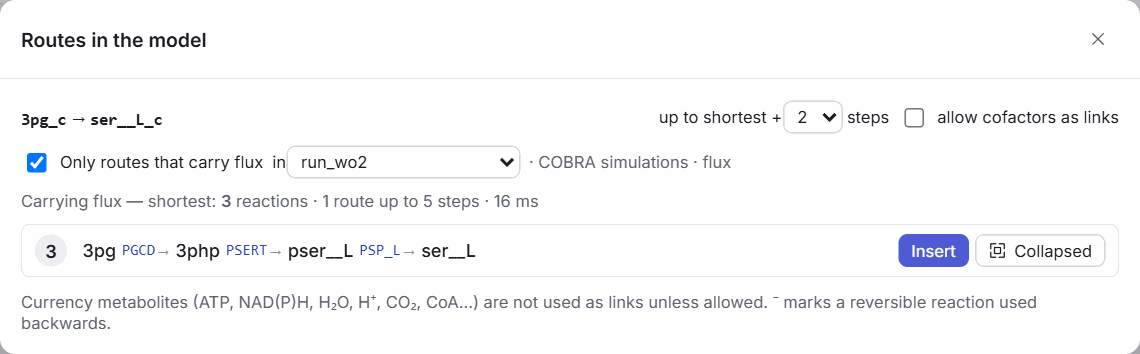
- Click Find routes 3pg_c → ser__L_c in the model….
- Keep Only routes that carry flux (here in
run_wo2). GEMs MAP finds one route of 3 reactions: PGCD → PSERT → PSP_L. - Click Insert to draw every step, or Collapsed to insert them as one summary arrow that you can expand later.
When to use routes
Find routes searches the model for chains of reactions between two metabolites, skipping cofactors such as ATP or NAD(H), and with flux data it keeps only routes whose every reaction carries flux in the direction used. It is very useful between nearby metabolites like these. Between distant metabolites the number of possible routes explodes and the result is hard to read; there, a template or a few steps of Connected reactions work better.
What you have done
You imported a genome-scale model, explored its structure, simulated it in two conditions, compared the solutions with categories, metrics and subsystem figures, and turned the comparison into a pathway map. Along the way you used two templates, data mappings, linked plots, collapsing, connected reactions and route finding. From here:
- save your work with File → Save project (
.gemsmap) and export figures with Export (Saving and exporting); - browse the COBRAGUI, Maps and Templates sections for every option;
- next tutorial: creating and reviewing your own templates (in preparation).
Reference
Orth JD, Conrad TM, Na J, Lerman JA, Nam H, Feist AM, Palsson BØ (2011). A comprehensive genome-scale reconstruction of Escherichia coli metabolism—2011. Molecular Systems Biology 7:535. doi:10.1038/msb.2011.65
The screenshots of this tutorial were captured from GEMs MAP 0.2.0 with COBRApy 0.32.1 and GLPK, using iJO1366.json from BiGG (SHA-256 9376a93f62ad430719f23e612154dd94c67e0d7c9545ed9d17a4d0c347672313). The values the application displayed are recorded in docs/assets/images/tutorials/quickstart-manifest.json.