Displaying and comparing results
Data reach a map as datasets. A dataset holds one or more conditions (columns) of values for reactions or metabolites. Mappings turn those values into visual properties: arrow width and colour, node size and fill. The model IDs bound to the drawing decide which value goes where.
Getting data onto the map
From COBRAGUI. Visualize result and Visualize comparison send results as datasets (see Results, comparison and export). Each result becomes a condition of the shared COBRA simulations datasets: fluxes, metabolite turnover, and FVA intervals as ranges.
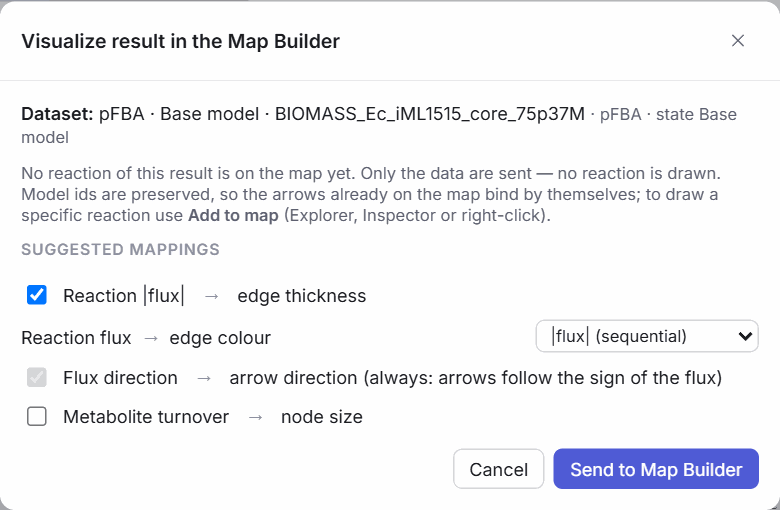
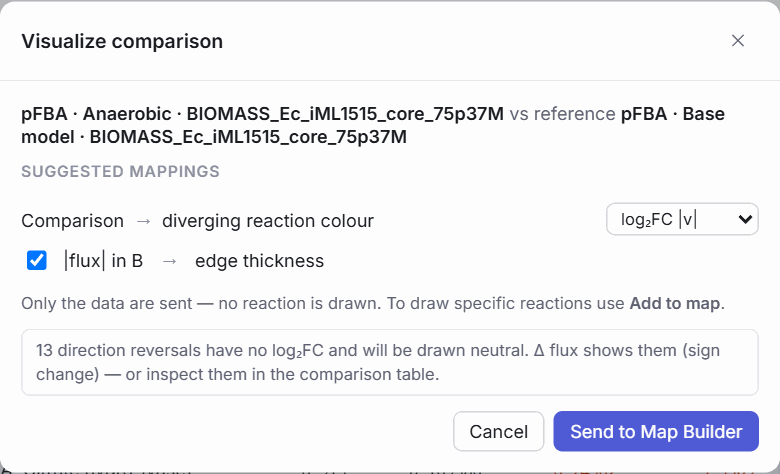
From a file (Data → Import fluxes / data, or drop the file on the window):
| Shape | Example header | Becomes |
|---|---|---|
| Wide table | reaction,WT,KO1,KO2 |
One condition per numeric column (fluxes, metabolite values or a time course) |
| FVA table | reaction,WT_min,WT_max or reaction,min,max |
Ranges, one condition per prefix |
| Long format | reaction,condition,value (repeated rows) |
Samples per condition, for distributions such as flux sampling or replicates |
| Result JSON | exported by COBRAGUI | Conditions of the COBRA datasets |
Small sample files in the first two shapes are in the repository, under public/examples/: pfba_4conditions.csv, fva_2conditions.csv and timecourse.csv.
CSV, TSV and semicolon-separated files are recognised, and lines starting with # are ignored. A first column called metabolite, compound or species makes a metabolite dataset; otherwise GEMs MAP decides by which IDs match the model. IDs are matched to the model leniently: case is ignored, and compartment suffixes and M_/R_ prefixes are tolerated. The dataset shows how many IDs matched (n % matched). Clicking it opens the import report, where each unmatched ID can be mapped to a model ID by hand; if almost nothing matches, the report says the file was probably made for a different model.
Sampling data
GEMs MAP does not run flux sampling (planned), but it displays sampling results made elsewhere: import them in long format and add density or box plots. The built-in example uses such sampled distributions.
Datasets and conditions
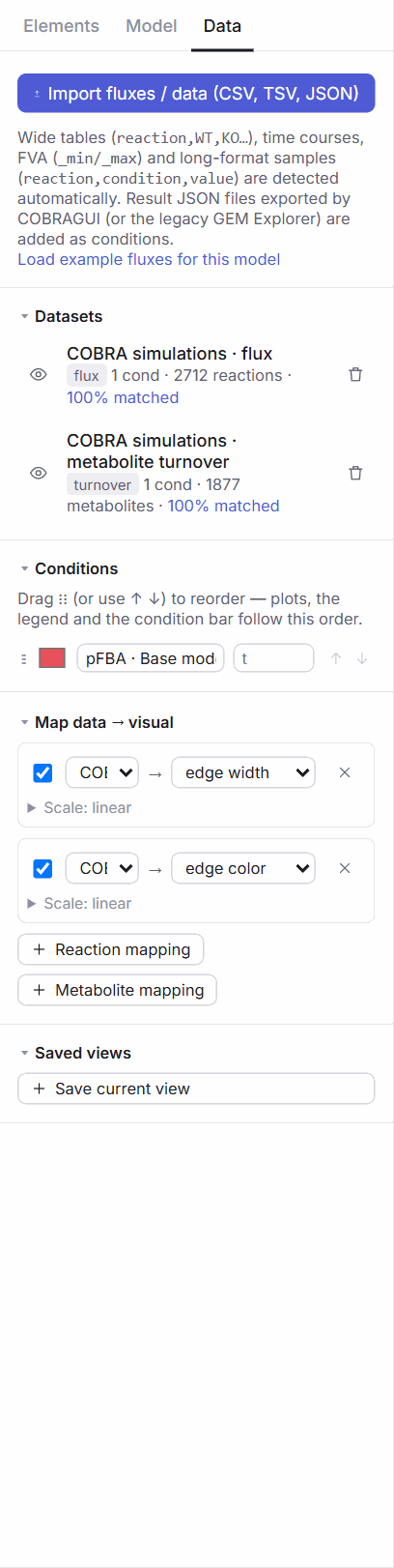
The Data tab lists datasets with their kind (flux, fva, samples, turnover, metabolite, comparison), size and match rate; each can be hidden, renamed or removed. Concentrations and turnover are different kinds and are never mixed. A turnover mapping is never silently replaced by a concentration mapping or vice versa.
Conditions have a name, a colour and optionally a time. Drag ⋮⋮ (or use ↑ ↓) to reorder them; plots, the legend, the condition bar and GIF export follow this order.
Mapping data to visual properties
Under Map data → visual, each mapping connects a dataset to a property:
| Target | Properties |
|---|---|
| Reactions (arrows) | width, colour, opacity, label (the value as text) |
| Metabolites (nodes) | radius, fill, opacity |
Each mapping has a scale (linear, square root, log or percentile), an optional manual domain (min / max), and for colours a palette:
| Palette | Kind |
|---|---|
| Viridis, Plasma, Blues, Reds, Grayscale | Sequential, for magnitudes |
| Blue–Red, Cool–Warm, Purple–Orange, Green–Purple | Diverging, for signed values and comparisons |
All built-in palettes are chosen to be colour-blind safe.
How fluxes are drawn.
- Direction always follows the sign of the flux in the active condition: the arrowhead points the way the reaction runs. A reaction that runs backwards flips its arrowhead; nothing about the drawing has to change.
- Because direction is already encoded, flux colour defaults to |flux| on a sequential palette (Viridis). Tick signed to colour by the signed value on a diverging palette.
- Width scales |flux| between 0.5× and 7× the base edge width.
- Zero flux (|v| < 10⁻⁹) is drawn thin and grey, without an arrowhead.
- Domains are computed across all conditions, so switching condition never silently rescales the map: the same width means the same flux in every condition.
Comparing conditions
The bottom bar selects the active condition (click a chip, or [ / ]) and the comparison mode:
| Mode | Value shown |
|---|---|
| absolute | The value in the active condition |
| difference (Δ) | Active − reference |
| fold change | Active / reference |
| log₂ fold change | log₂(active / reference) |
In the comparison modes you choose the reference condition, and colours switch to a diverging palette centred on "no change". For fold changes of fluxes between two simulation results, COBRAGUI's Visualize comparison is preferable, because it classifies activations, inactivations and direction reversals before taking any ratio; reactions without a defined fold change are drawn neutral.

Saved views (Data tab) store the active condition, comparison mode, reference and mappings under a name, to switch quickly between versions of a figure.
Mini-plots next to reactions
Select reactions and press P, or use Linked plots in the inspector or the right-click menu, to attach mini-plots that move with their reaction:
| Plot | Shows | Typical data |
|---|---|---|
| density | Distribution per condition (dashed line at the mean) | Samples |
| box | Distribution summary per condition | Samples |
| bar | One bar per condition | Fluxes |
| line | Values along conditions or time | Time courses |
| heatmap | One cell per condition | Fluxes, comparisons |
| range | Interval per condition | FVA results |
The plot inspector sets the type, dataset, title, font size and size; drag the handles to resize.
Legend and animation
- The legend is generated from the active mappings (widths, colour scales, conditions) and can be resized by dragging a corner; Legend in the figure settings shows or hides it.
- ▶ in the bottom bar plays through the conditions: loop, ping-pong or once, at 0.5–3 s per step. With more than two conditions that all have a time, a timeline slider appears.
- Flux particles (the dots button) animate flow along arrows for presentations; they are not exported.
- For an animation file, see GIF export.
Next: Save and export the figure.