Canvas and side panels

- Left panel with three tabs: Elements, Model, Data (Alt+1/2/3).
- Toolbar: panels, drawing tools, undo/redo, grid and snapping, zoom, fit.
- Canvas.
- Inspector: the selected item, or the whole figure.
- Condition bar: conditions, animation and comparison mode.
Top bar and toolbar
The top bar holds the workspace switcher, the File menu, the editable figure name, the search / command palette (Ctrl+K) and Export.

| Tool | Key | Use |
|---|---|---|
| Select | V | Click to select, drag to move, drag on empty canvas to box-select. |
| Pan | C | Drag to move the view. Also: hold Space and drag, or drag with the right mouse button. |
| Metabolite | M | Click to place a metabolite node (search the model to bind it). |
| Slot | S | An empty placeholder node, bound later (see Linking a map to a model). |
| Reaction | R | Draw an arrow between nodes. |
| Text | T | Place a text label. |
Then come undo / redo (Ctrl+Z / Ctrl+Shift+Z), Show grid and Snap to grid (independent of each other), the zoom level (click to reset to 100 %), Fit all (F; Shift+F fits the selection) and the inspector toggle.
Navigating
The recommended way: C to move, V to work, the wheel to zoom
Press C for the hand and drag to move around the map; press V to go back to Select and work on it; zoom with the mouse wheel, which zooms around the pointer. Switching between C and V all the time is the fastest and safest way to work: with the hand, a drag never moves or selects anything by accident.
- Zoom with the mouse wheel, + / -, or the zoom buttons. On a trackpad, pinch to zoom.
- Pan with the hand tool (C), or hold Space and drag, or drag with the right or middle mouse button (a right-click without moving still opens the context menu). On a trackpad, move two fingers; Shift + wheel scrolls sideways.
- F fits the whole figure, Shift+F the selection; click the zoom level to reset to 100 %.
- The minimap in the lower right corner shows the whole figure and the visible window.
Selecting and moving
- Click to select; Shift-click adds to the selection; drag on empty canvas to box-select. Ctrl+A selects everything.
- Drag to move. Smart guides snap to the alignment of nearby items (turn them off in the figure settings, or hold Alt while dragging). Shift-drag constrains movement to 0°, 45° or 90°.
- Arrow keys nudge by 1 unit, Shift + arrow by 10.
- L locks the selection: locked items are skipped by clicks and box selection, so a background or a finished part cannot move by accident. Hold the mouse on a locked item for 3 s, or right-click it, to unlock.
- Ctrl+C / Ctrl+V / Ctrl+D copy, paste and duplicate; Del removes; Ctrl+G groups the selection as a pathway, Ctrl+Shift+G ungroups.
A floating toolbar next to the selection offers the actions that fit it: bind a node to a model metabolite, expand one reaction upstream or downstream, add a linked plot, reverse an arrow, change its routing, find routes, collapse arrows, and, for several items, layouts and Align & distribute (see Drawing pathways).
The left panel
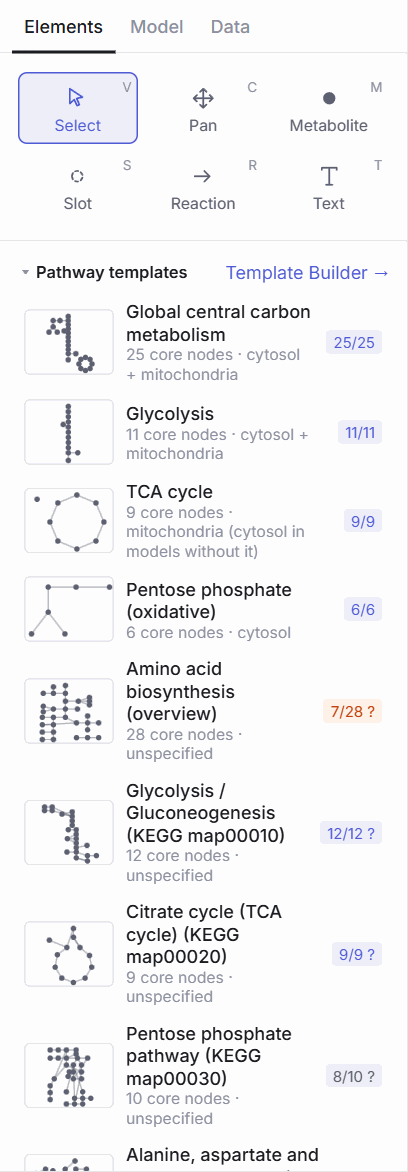
25/25); a ? means some matches still need review.| Tab | Contents |
|---|---|
| Elements | The drawing tools; pathway templates (built-in and yours, with coverage badges); Template Builder →; shapes; My templates saved from a selection; annotations: panel label, figure title, pathway label, compartment box. |
| Model | The bound GEM with its size and validation notes; a search over IDs, names, genes, EC numbers and pathways, with buttons to add a metabolite or a reaction (with its metabolites), focus a node or expand downstream; Find metabolic path…. |
| Data | Import of flux and other data; datasets; conditions (rename, recolour, reorder, set a time); Map data → visual: mappings from datasets to arrow width, colour, opacity or label and to node radius, fill or opacity; saved views. See Displaying and comparing results. |
As in the inspector, the sections of these tabs (for example Pathway templates or Shapes) fold with a click on their title, and the panel remembers which ones are folded.
The inspector
The right panel adapts to the selection. Its sections fold with a click on their title (Expand all / Collapse all at the top).
| Selection | What the inspector offers |
|---|---|
| Nothing | Figure settings: name, style preset, global label mode for metabolites and reactions (ID / name / none), Show flux values, cofactors hidden or as inline text, legend on/off, node radius, edge width, font sizes, grid, snapping, smart guides, layout spacing. |
| A metabolite | Model identity (Inspect in COBRAGUI →), template mapping and its candidates, formula, charge, compartment, values per condition, appearance (label, label position, radius, style, fill, lock), connected reactions with Hide zero-flux reactions, Upstream / Downstream. |
| A reaction | Model identity and equation, participants shown on this arrow, flux in the active condition and in every condition, FVA ranges, bounds, genes, subsystem, EC, appearance (label, routing straight / curved / orthogonal, curvature, solid or dashed line, Reverse, Flip label), Routes, Linked plots. |
| A plot, text, group or the legend | Their own properties: plot type, dataset, size; text, size, weight, colour; group title, kind, background, border, padding; legend size. |
| Several items | Layouts, circle options, Tidy selection, Collapse into one arrow, label settings for all selected metabolites, routing for all selected reactions, + density plot for each. |

PFK): its participants, its flux in each condition and its appearance.
pyr_c): template mapping with its alternatives, data and connected reactions.Context menu and command palette
Right-click on the canvas or on an item for the actions of that place or item: add a metabolite, slot, text or panel label here; expand the network upstream (1 or 2 steps) or downstream (1, 2 or 5 steps); bind, rebind, confirm or clear a mapping; find a path or routes; change routing, flip a label, reverse an arrow; add a linked plot; group, lock, collapse; Save as template…; duplicate, paste, delete.
Ctrl+K opens the command palette: type to find a command (create, layout, labels, style, condition, file, template, view) or an element of the model to add.
All shortcuts
Press ? in the Map Builder for the list.
| Keys | Action |
|---|---|
| V C M S R T | Select, pan, metabolite, slot, reaction, text |
| Space + drag, right-drag | Pan |
| P | Add a density plot to the selected reaction(s) |
| Ctrl+K | Command palette |
| Ctrl+Z / Ctrl+Shift+Z | Undo / redo |
| Ctrl+C / Ctrl+V / Ctrl+D | Copy / paste / duplicate |
| Ctrl+G / Ctrl+Shift+G | Group as pathway / ungroup |
| Ctrl+A | Select all |
| Del | Delete |
| L | Lock the selection |
| Arrows (+ Shift) | Nudge by 1 (10) units |
| Shift + drag | Constrain to 0°, 45°, 90° |
| Alt + drag | Ignore smart guides |
| F / Shift+F | Fit all / fit selection |
| [ / ] | Previous / next condition |
| Ctrl+S / Ctrl+O / Ctrl+E | Save project / open project / export figure |
| Double-click canvas | Add a metabolite |
| Drag a node's outer ring | Draw a reaction (drop on empty canvas: new slot) |
| Double-click a label | Edit the text |
Next: Drawing pathways.