First look
Start GEMs MAP with the gemsmap command (or Start GEMs MAP in the zip folder; see Installation). It opens in your browser, in COBRAGUI. The switcher at the top left moves between the three workspaces; each keeps its state while you work in another.
COBRAGUI
Without a model, COBRAGUI shows a drop zone. Drop an SBML, COBRA JSON or MATLAB model, click Import model, or try one of the two models bundled with COBRApy. After the import, the Overview summarises the model and its validation notes.

- Workspace switcher.
- The sections of an analysis, top to bottom.
- The active model state (scenario), its modifications and structural edits.
- Run the selected method.
- The model card.
- The inspector, filled by whatever you click.
- Backend and solver, active results, zero threshold, activity log.
Continue with COBRAGUI.
Map Builder: Maps
The Map Builder opens with an empty canvas that suggests how to begin. Its button Open the central carbon demo (also File → Open example) loads the built-in figure with simulated fluxes and flux-sampling distributions for four conditions, the kind of figure GEMs MAP is designed for. If you have worked before, a welcome banner offers to continue your last session.
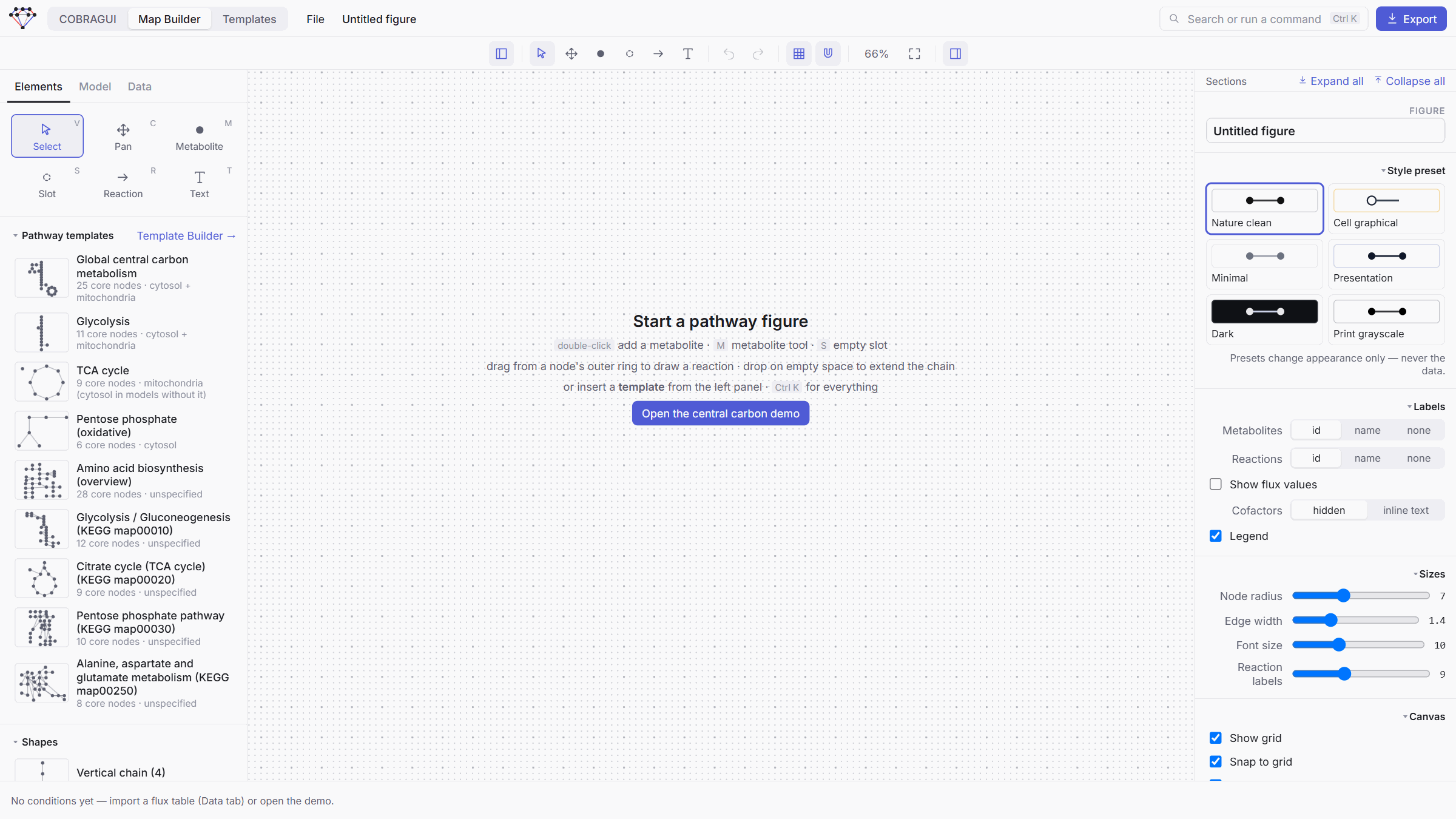
Move with C, work with V, zoom with the wheel
This is the most important habit in the Map Builder, and the way it is meant to be used:
- C turns the pointer into a hand: drag anywhere to move around the map, without selecting or moving anything by accident.
- V brings back the Select tool: click, drag and box-select to work on the map.
- The mouse wheel zooms in and out around the pointer; F fits the whole figure in the window.
Keep one hand on the keyboard and switch between C and V all the time. Holding Space while dragging, or dragging with the right or middle mouse button, also moves the view.
Continue with Maps and its first five minutes in the canvas.
Templates
The third workspace lists the pathway templates and opens them in Template Design Mode. Templates describe what each molecule is; applying one to a model happens in the Map Builder.
Continue with Templates.
Getting help inside the app
- Ctrl+K opens the command palette in every workspace: search the model, the figure or the commands.
- ? lists the Map Builder shortcuts.
- Many controls explain themselves in a tooltip; Learn more on each simulation method gives its definition.
- The Activity log in the COBRAGUI status bar records imports, runs, exports and errors.
Next: Import a model.